Vmbra · Isolated AI Workstation
- 01// An isolated macOS workstation for AI-assisted coding: AI tools and untrusted code run in a workspace of their own, with files, network and processes held by a system-level sandbox that cannot reach your documents, desktop or keys.
- 02Product design · Full-stack
- 04
- 05
- 06
- 07
- 08
- 09
- 10
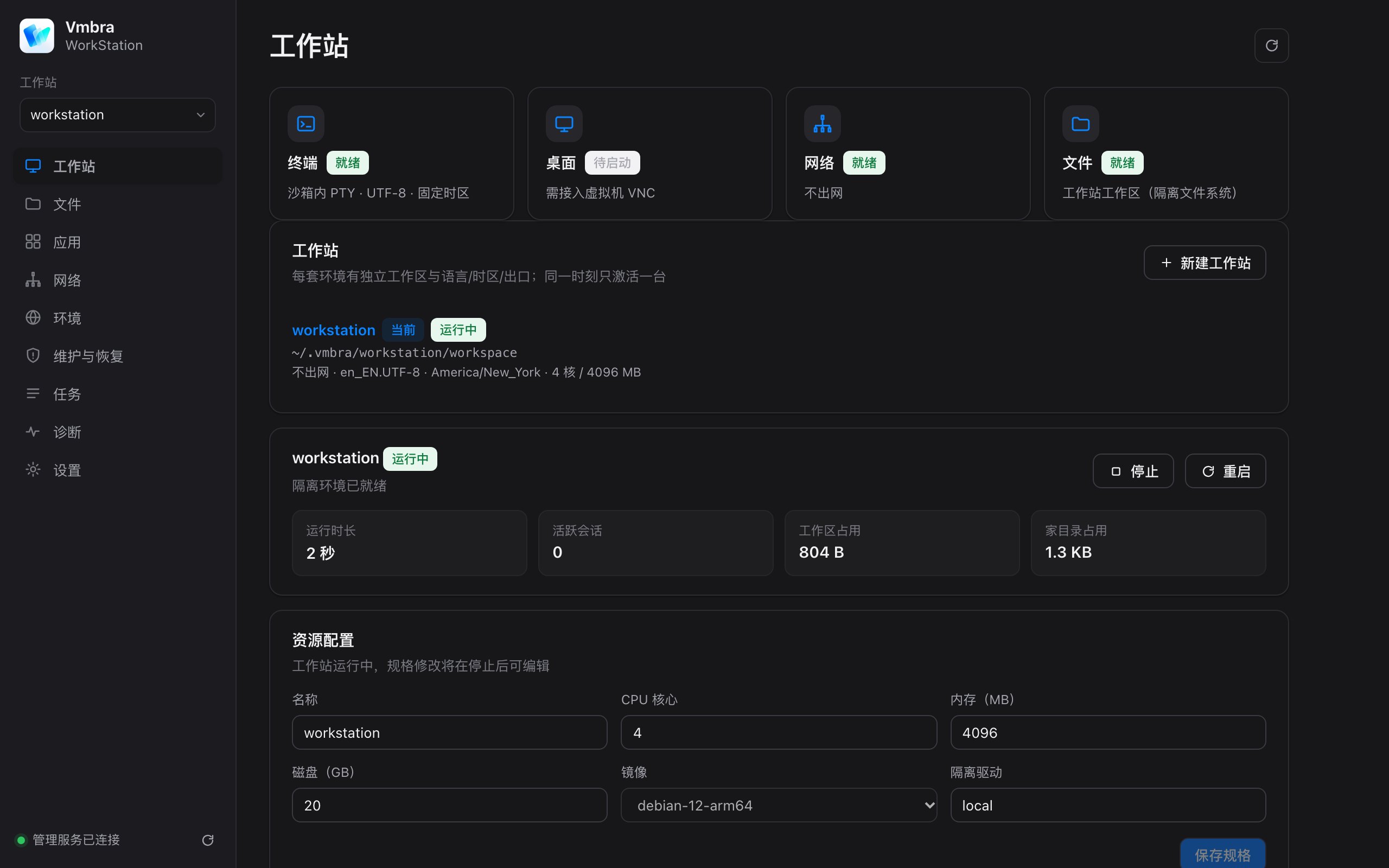
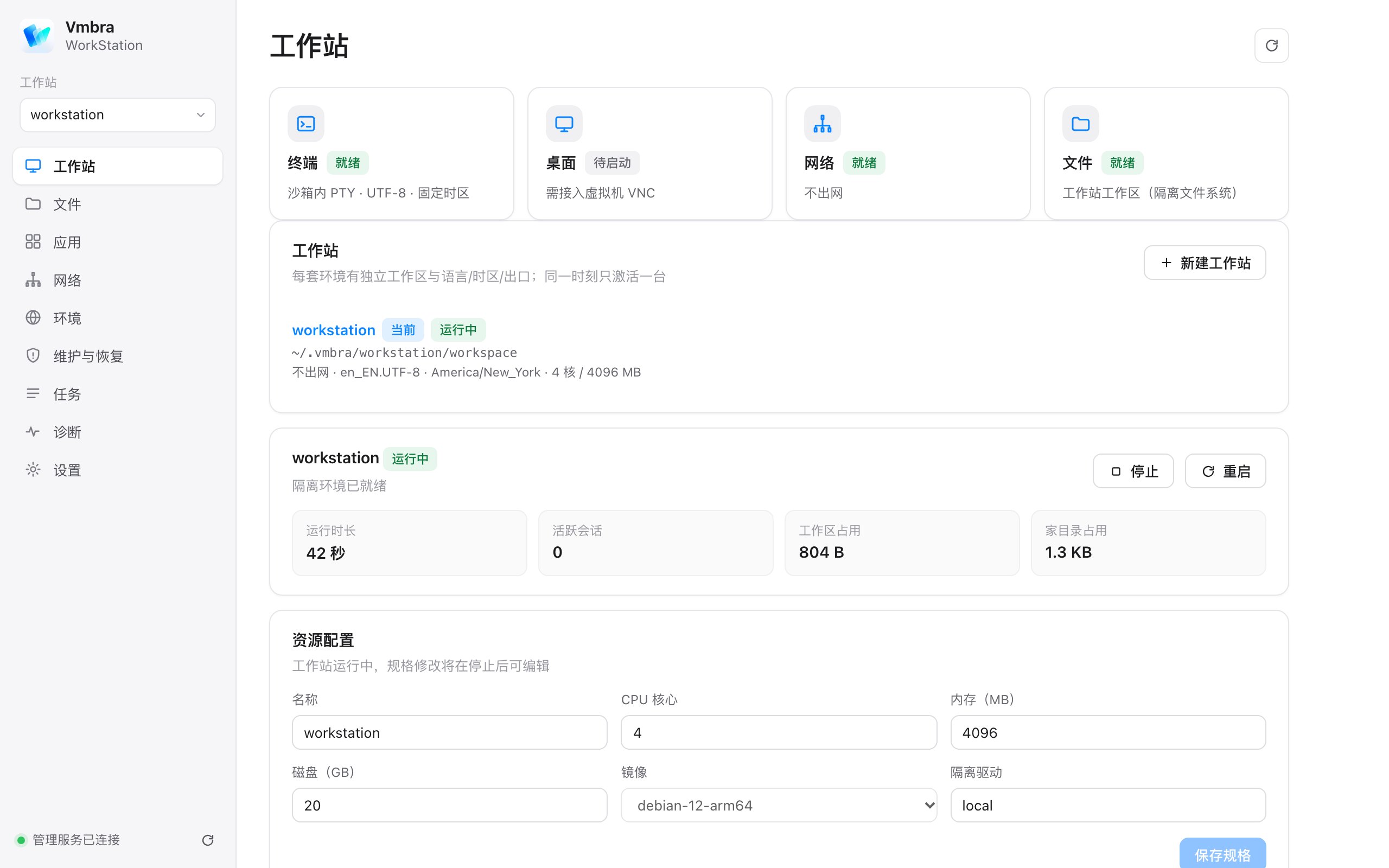
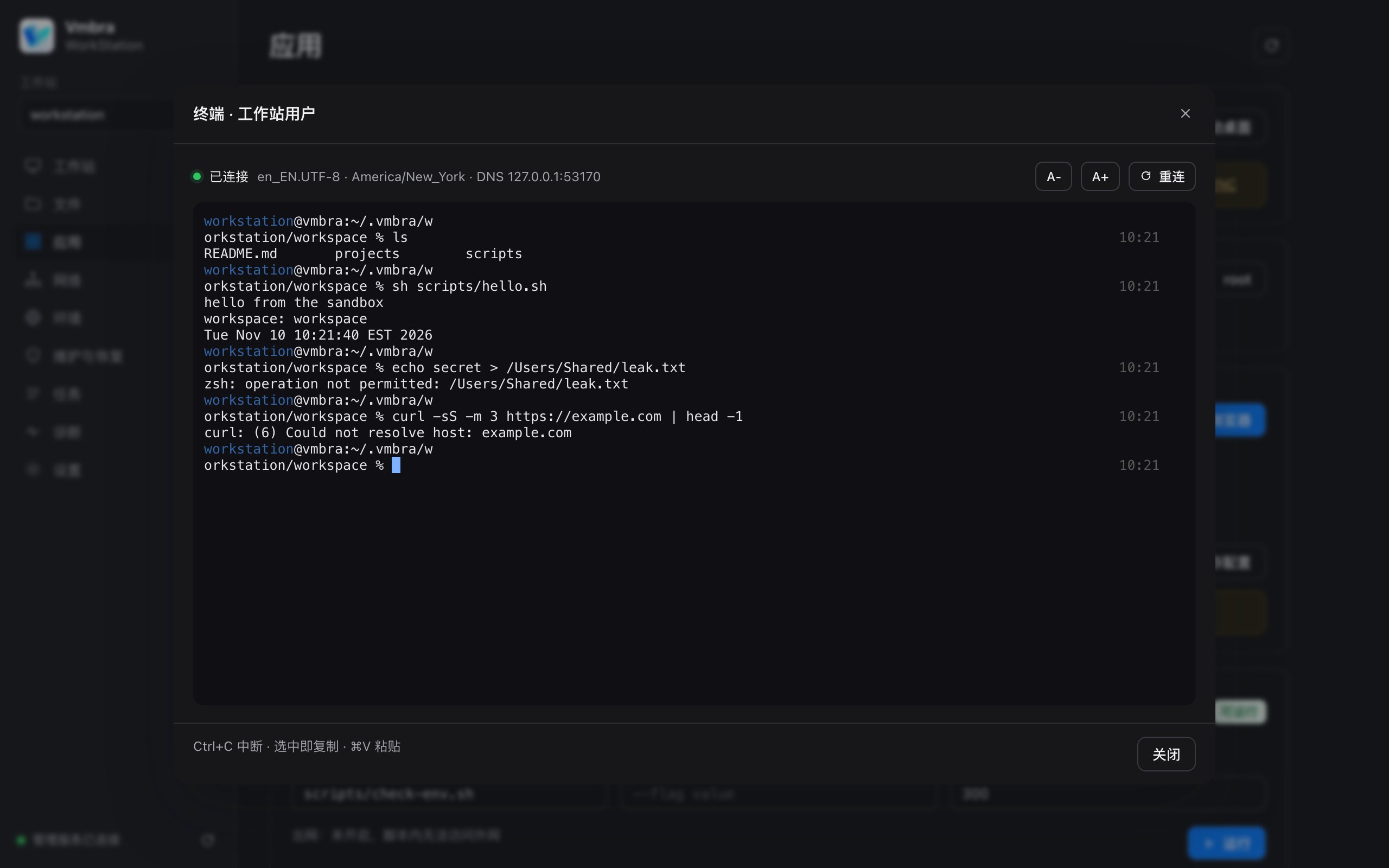
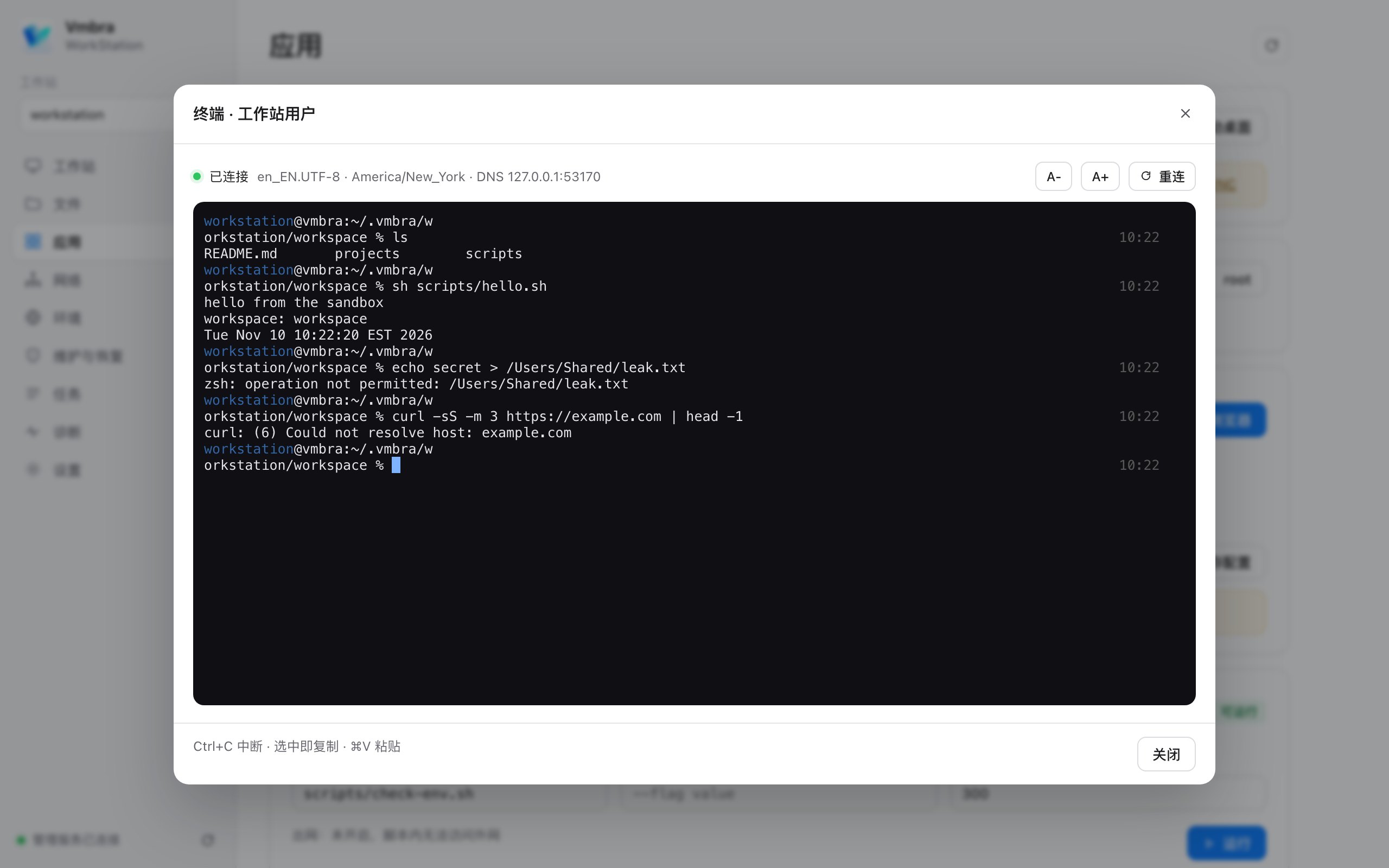
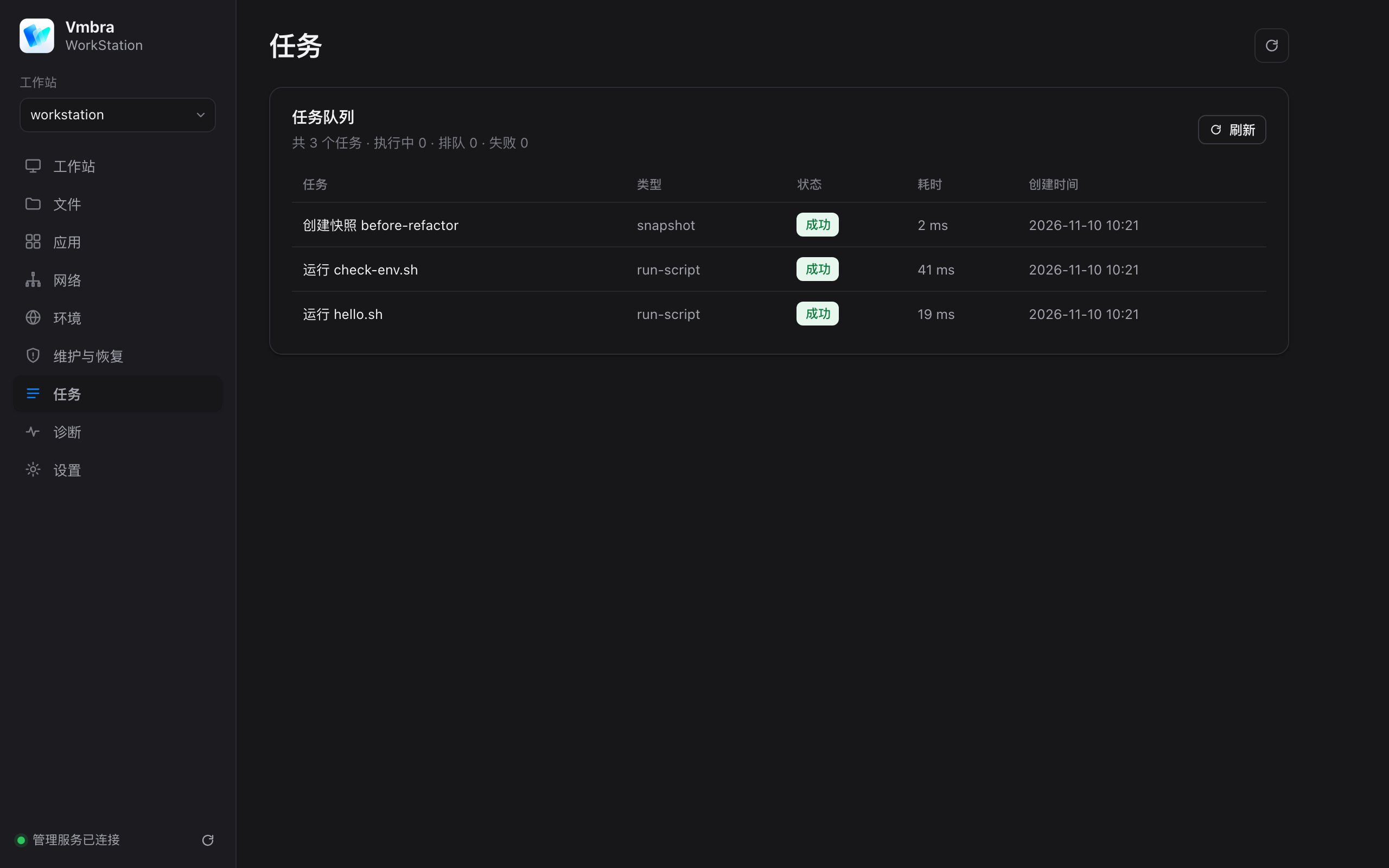
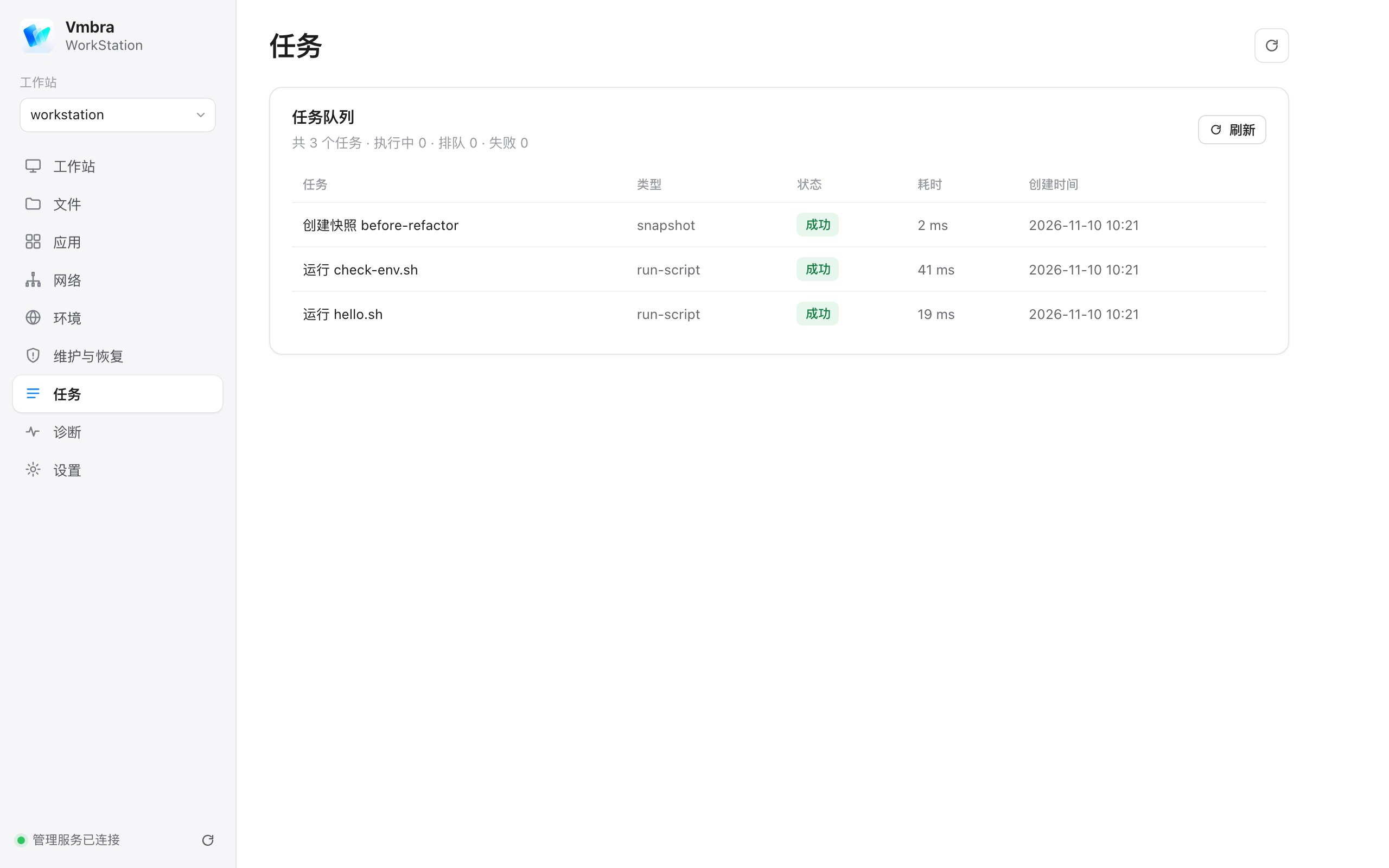
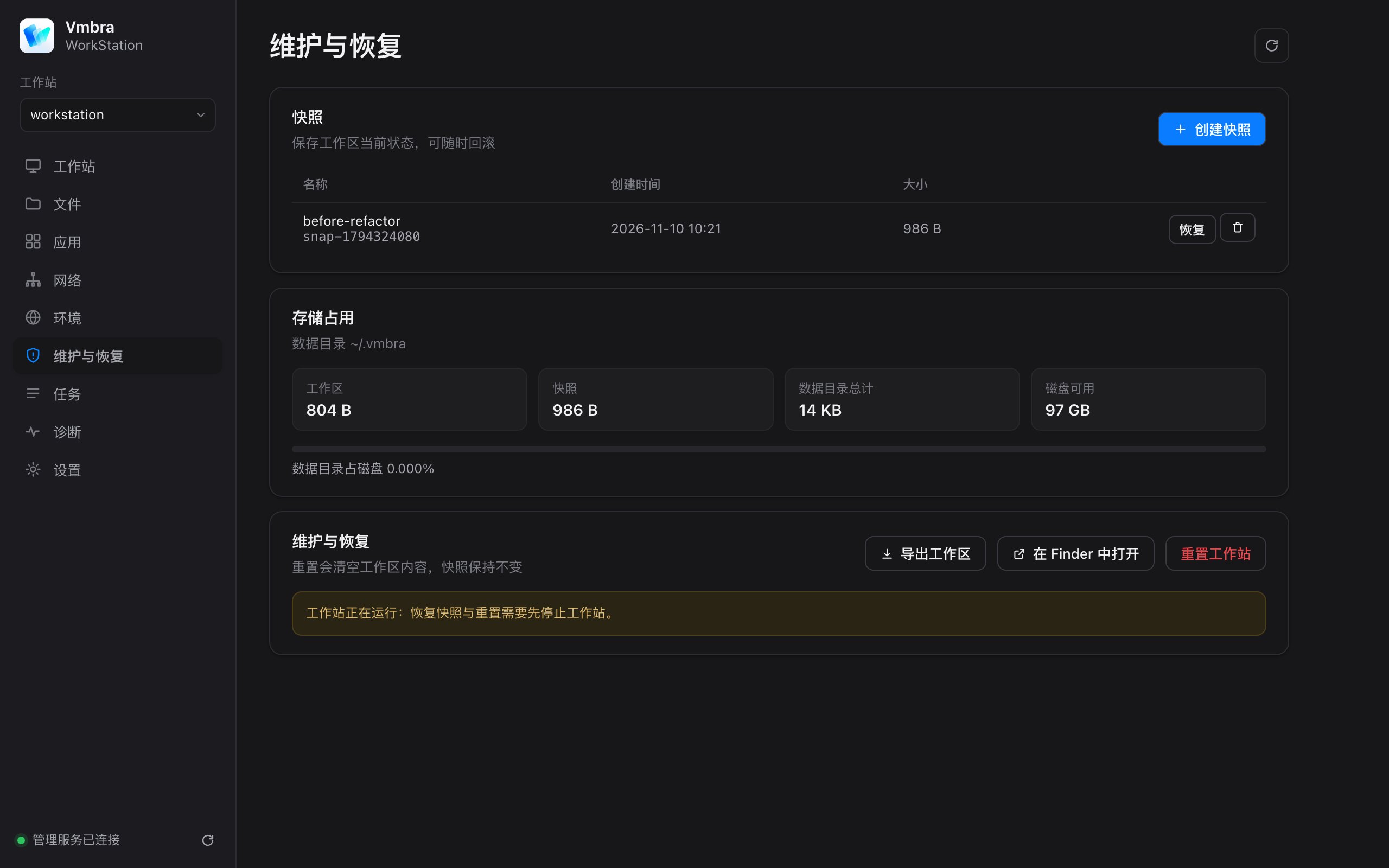
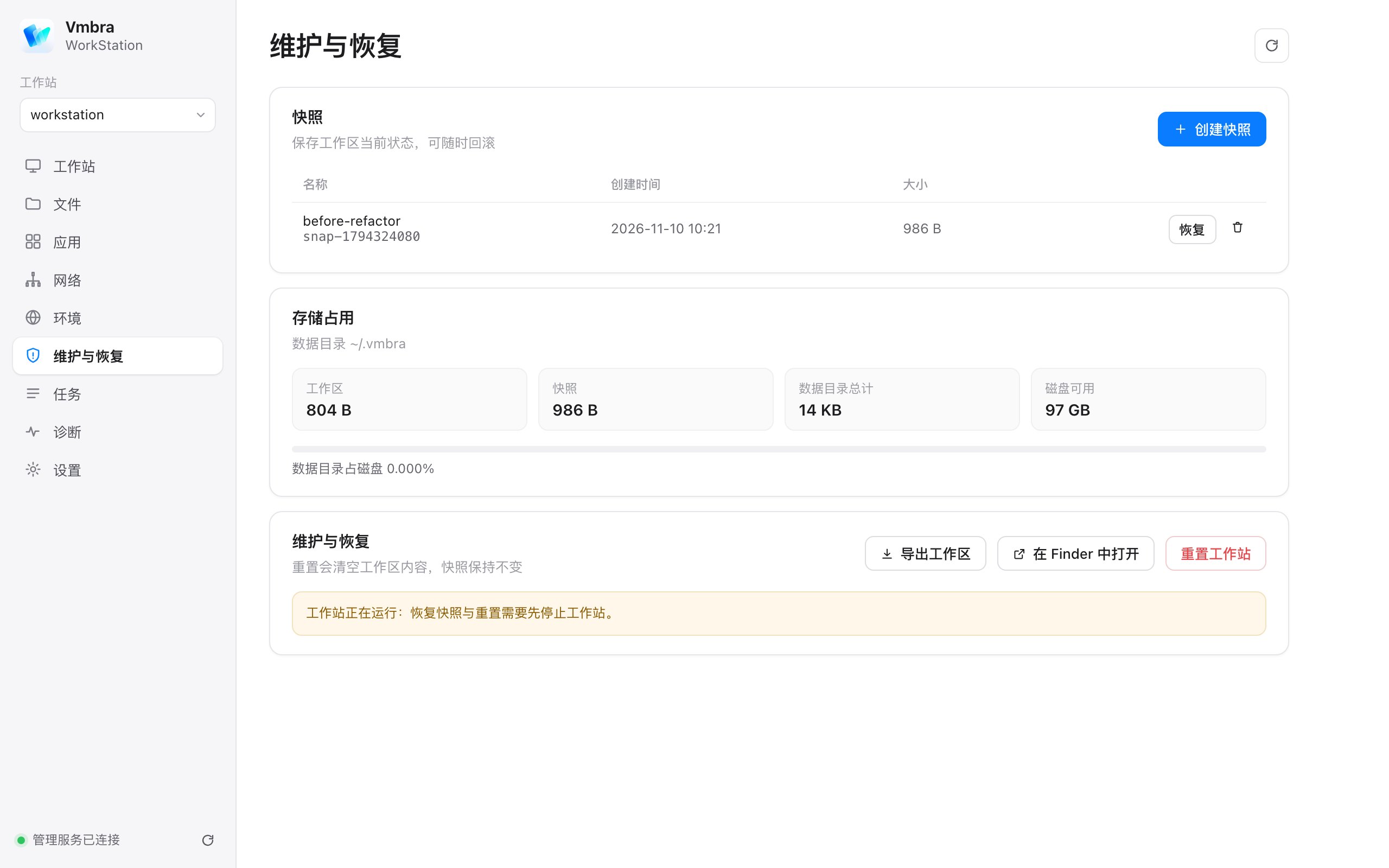
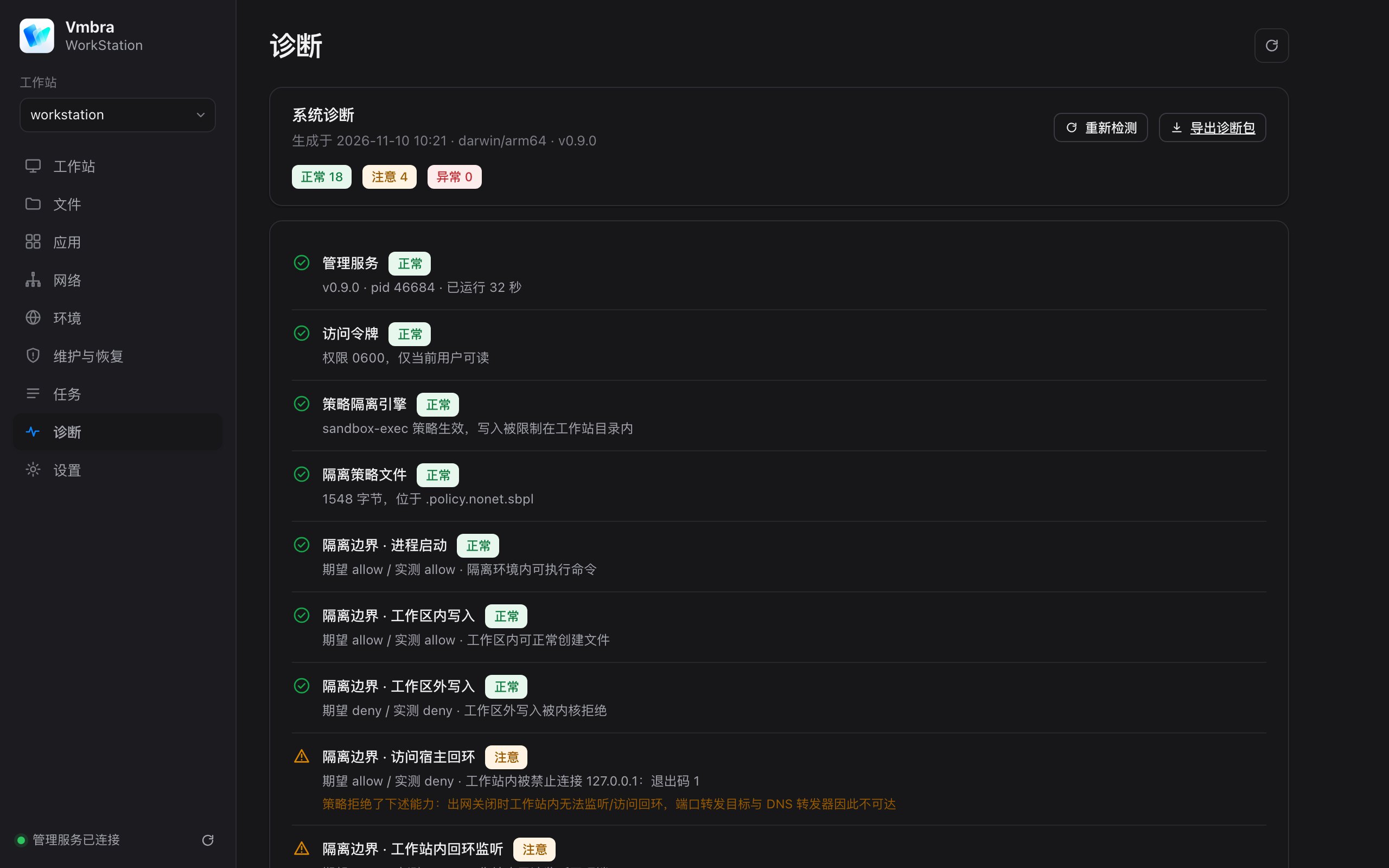
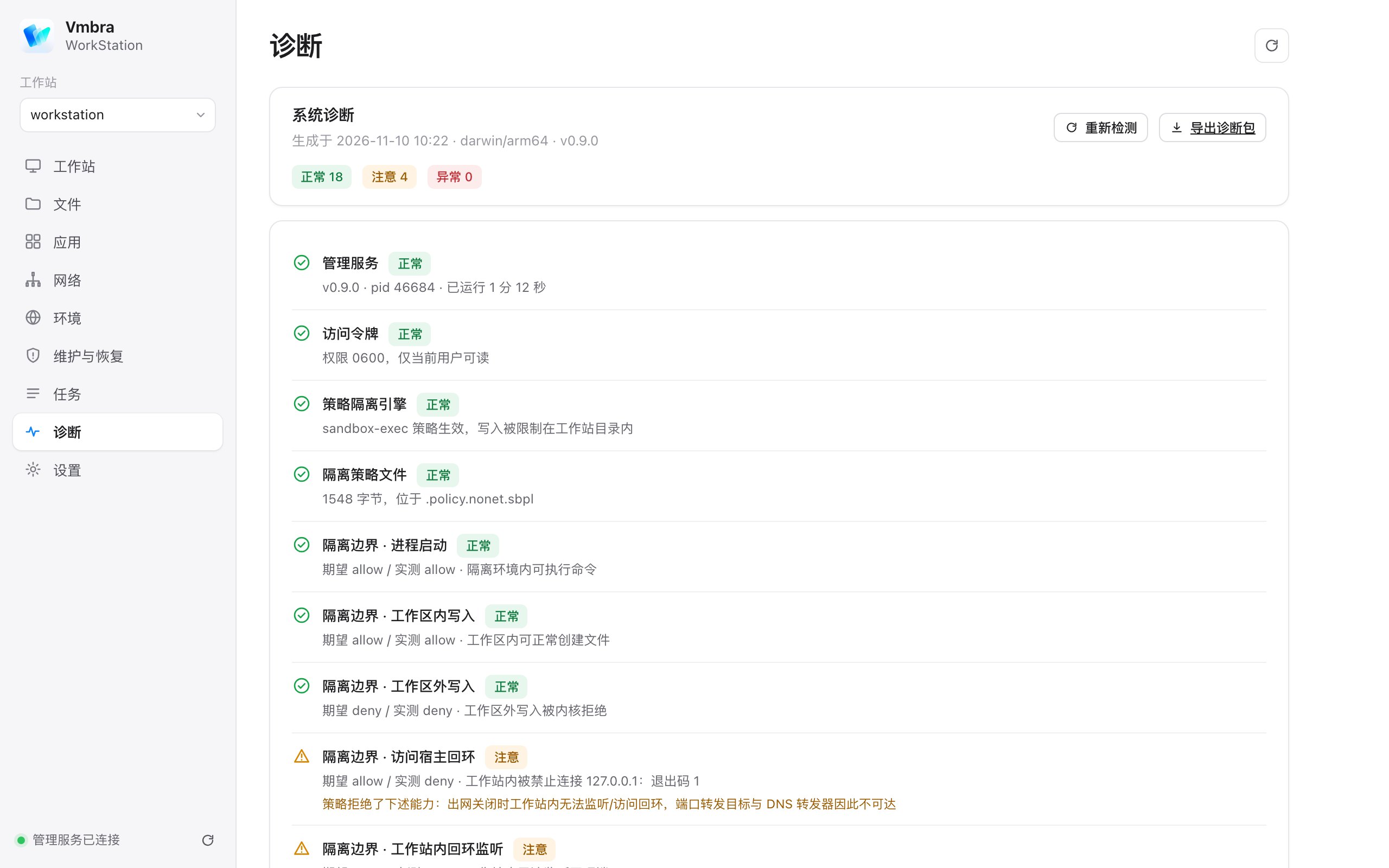
Feature tour7 feature screens
- 9
- console sections
- 22
- self-checks, 6 probing the boundary
- 0
- Docker or VM required
- v0.9
- current version
- Year
- 2026
- Type
- Product
- Role
- Product design · Full-stack
- Status
- Open source
Overview
Vmbra is a macOS desktop app that gives AI coding assistants and untrusted code an isolated local workspace. Running an AI coding assistant directly on your Mac hands it your whole home folder, SSH keys and browser cookies; moving to a VM or container means images to configure, resources to spare and files to sync. Vmbra uses the sandbox built into macOS to carve out a workspace with a clear boundary — ready the moment it opens, and one click to roll back when something goes wrong.
Problems it solves
- Exposed data and credentials: documents, desktop, downloads, pictures, SSH keys, keychains and browser cookies cannot be read from inside the sandbox
- Mistakes that can't be undone: writes are limited to the workspace and the system temp area; snapshot before a big change and restore at any time
- Data leaving the machinefully offline by default, switched on explicitly in the console when needed
- Runaway processestimeouts reap the whole process group, and CPU time, file size and file handles are capped
How it differs
- Versus Docker or a VMbuilt on the macOS sandbox — no runtime to install, no images to download, no virtualization overhead, and your own toolchain just works
- Versus an AI tool's own permission prompts: the boundary is enforced by the kernel, not by the tool's rules or by clicking "allow" step by step
- A boundary you can verify: 6 of the 22 self-checks actually probe the isolation boundary, comparing expected with measured instead of trusting configuration
- A complete workbenchterminal, files, editor, task queue and snapshots in one console, not just a wrapper around a shell
Key features
- Multiple workstationseach with its own workspace, locale, time zone and network setting
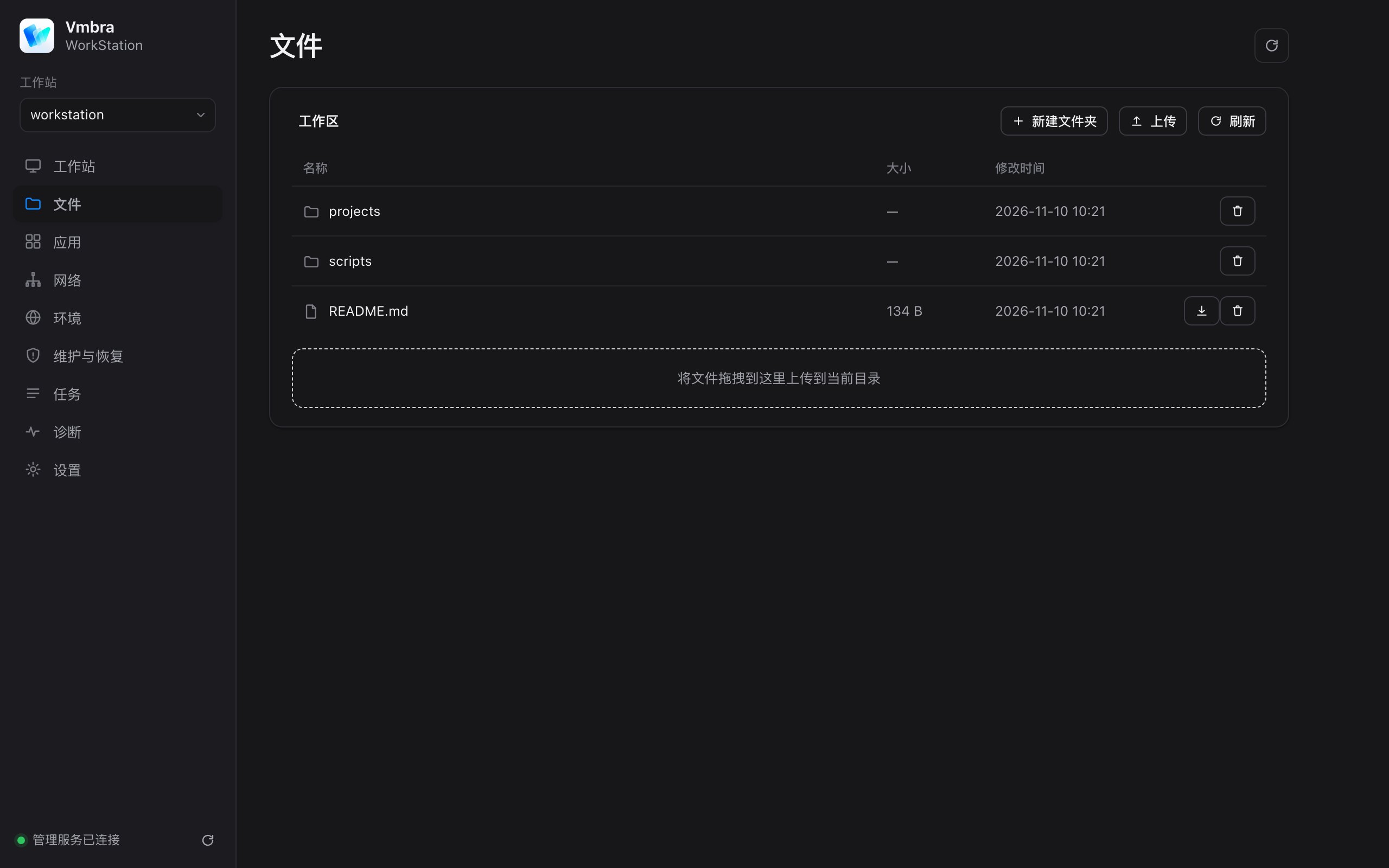
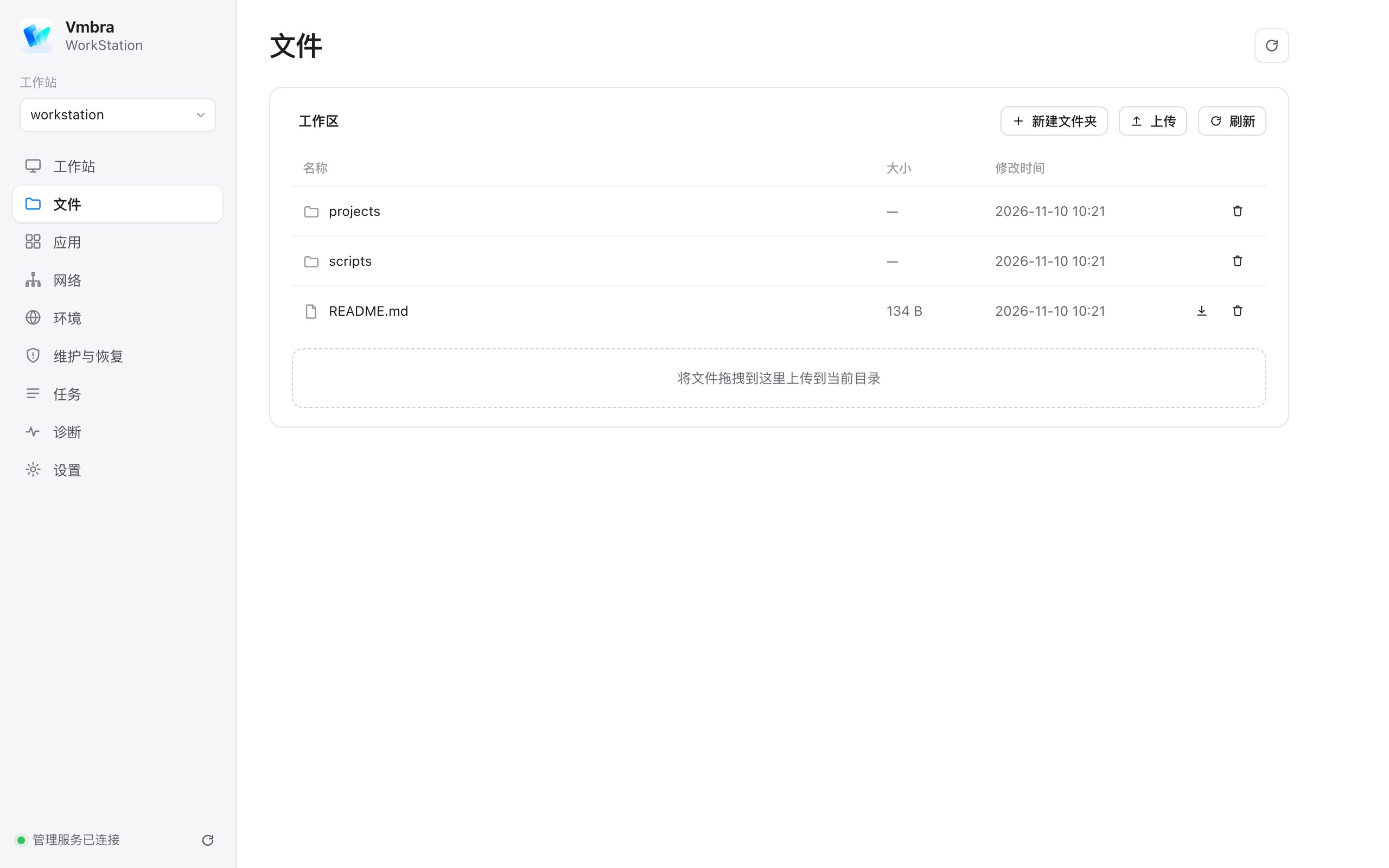
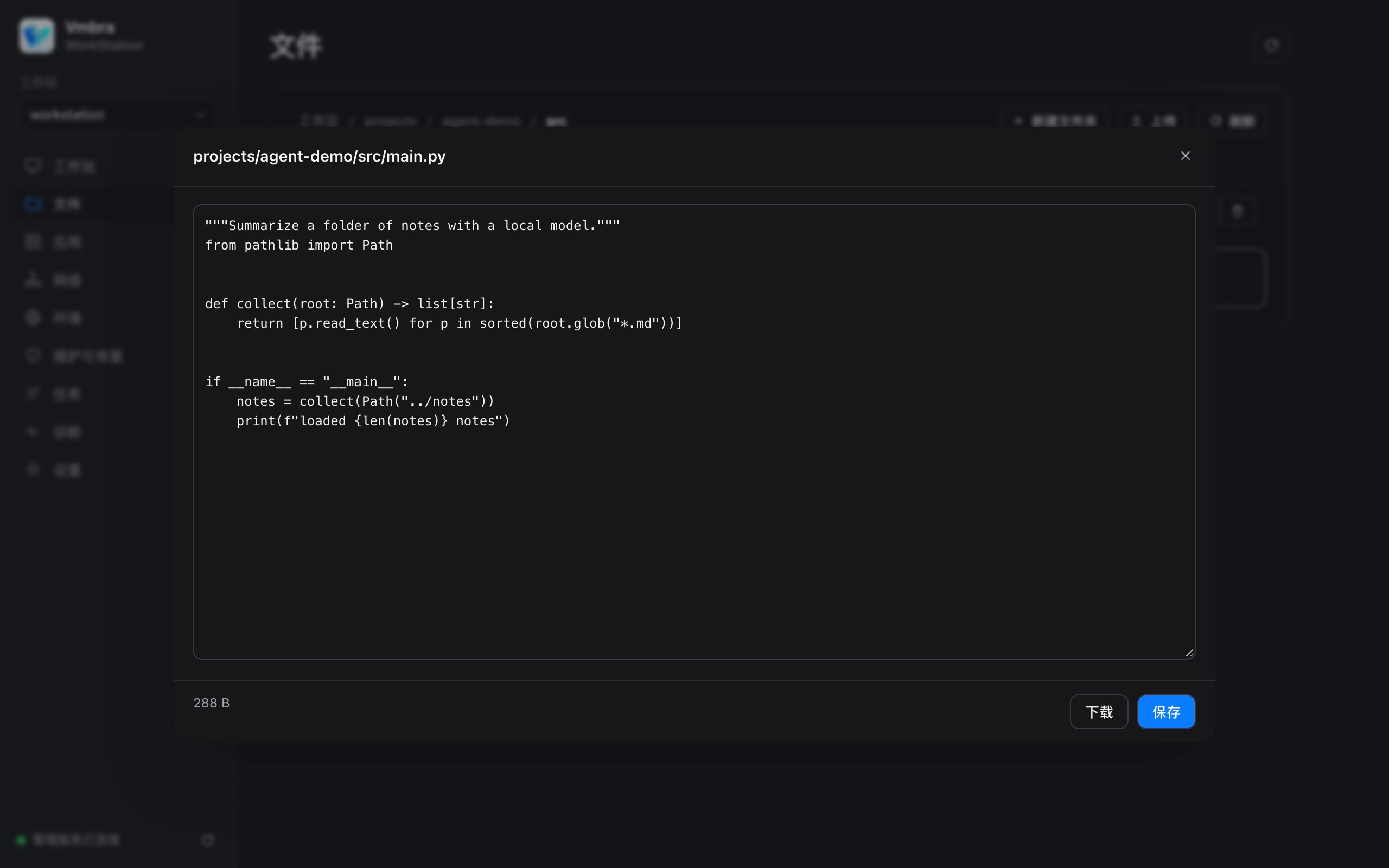
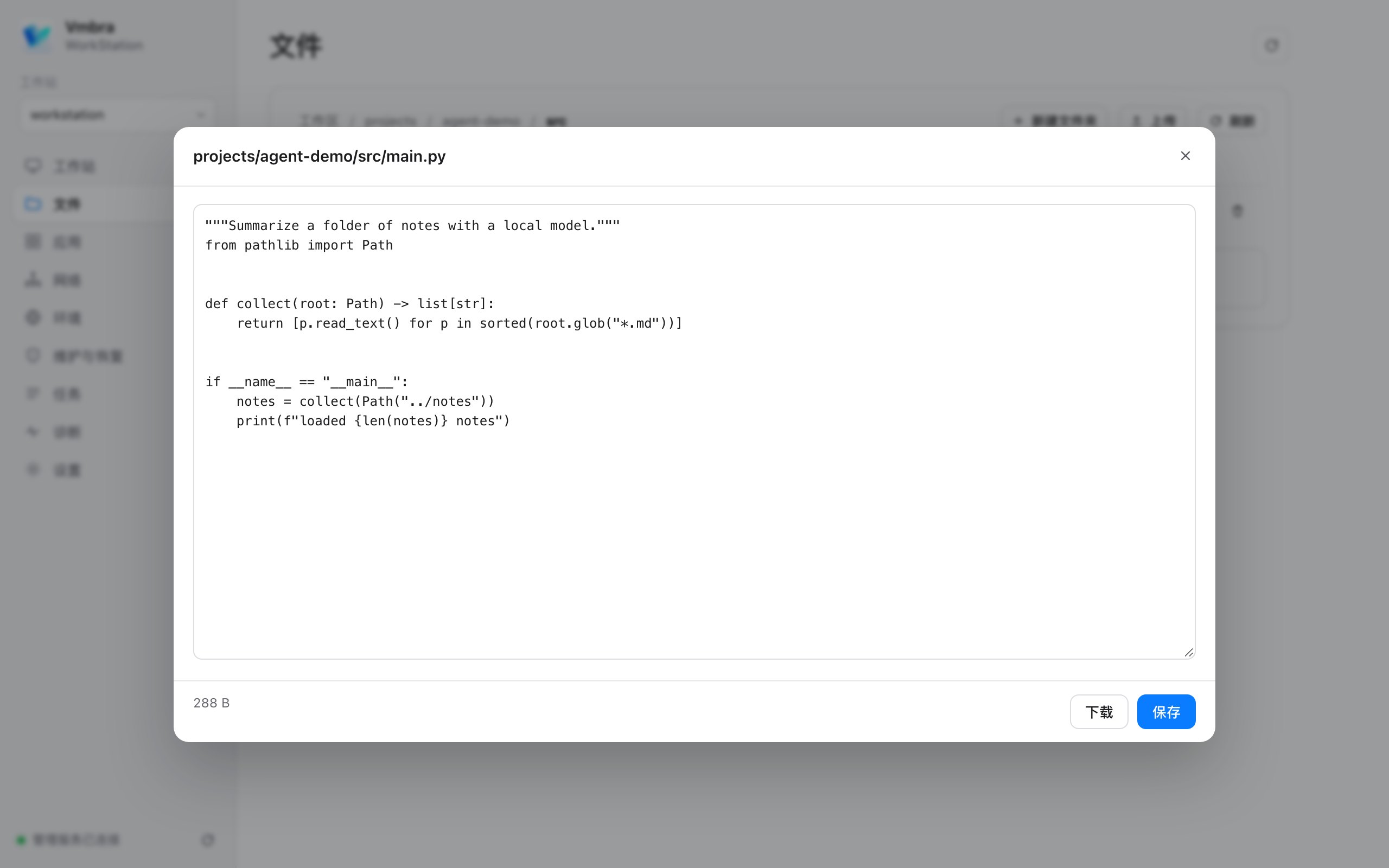
- Files & editingdrag to upload, download, and view or edit workspace files inline
- Terminal & tasksa sandboxed terminal; scripts pick their interpreter by extension, and background jobs share one queue with live logs
- Maintenancesnapshots, export and reset
- Network & environmentnetwork switch, port forwarding and environment variables
Architecture
- The manager is a single Go binary that listens on loopback only, with token auth and origin checks
- The console is embedded plain web code; the desktop shell is written in Swift
- Ships with sandbox-escape tests and an API smoke test
Note: the screenshots on this page are the real product, captured in a fresh demo workspace with no real data.
How to use it8 steps
- 01
Open Vmbra
Drag Vmbra into Applications and open it. It starts the local manager and the workstation for you; the window title and the status light in the corner turn to "running".
The console runs only on your Mac and listens on a local address, so no other device can reach it.
- 02
Meet the workstation
The four cards on the home screen are four ways in: terminal, desktop, network and files. Below them you can see uptime, active sessions and workspace usage.
To keep different jobs apart, choose "New workstation". Each one has its own workspace; only one is active at a time, and you switch with the menu in the top-left corner.
- 03
Put your project in the workspace
Open Files (⌘4) and drag a folder into the window to upload it; you can also create folders, download or delete. Clicking a text file opens the inline editor — press Save when done.
The AI can only see what you put in the workspace. Your documents, desktop, downloads, photos and keys are not there and cannot be read from inside the sandbox.
- 04
Run AI tools inside the sandbox
Open the terminal (⌘1) and you get a shell that is already inside the sandbox. Start a command-line AI coding assistant here, or run any code you do not fully trust.
You can check the boundary yourself: try writing a file outside the workspace and the system answers "Operation not permitted". The network is off by default — turn it on under Network when you need it.
- 05
Run scripts and watch tasks
Under Apps → Run script, enter the script path, arguments and a timeout (300 seconds by default, 3600 at most) and press Run. Vmbra picks the interpreter from the file extension.
Every background job lands in Tasks: up to 3 run at once and the rest queue; open one for its live log, and cancel anything running or waiting.
- 06
Snapshot before big changes
Before letting an AI make sweeping changes, go to Maintenance and choose "Create snapshot". If you do not like the result, press Restore and the workspace returns to that moment.
The same page can export the whole workspace as an archive or reset the workstation to start over. Stop the workstation before restoring or resetting.
- 07
Run diagnostics when in doubt
Diagnostics runs all 22 self-checks in one go. The "isolation boundary" group is a real probe — can a process start, can it write inside the workspace, is it refused outside, is the network blocked — comparing expected and measured for each.
If something is wrong, choose "Export bundle" and send the result to support.
- 08
Handy shortcuts
⌘1 Terminal · ⌘2 Desktop · ⌘3 Network · ⌘4 Files ⌘S Start workstation · ⌘. Stop workstation · ⌘R Refresh console
Stack
- Go
- Swift
- WKWebView
- sandbox-exec
- xterm.js
- noVNC
- WebSocket
- Node.js
Keywords
- macOS
- Sandbox
- AI workspace
- Desktop app
- Open source